NEW: Smart Spelling & Grammar Check (Finally)
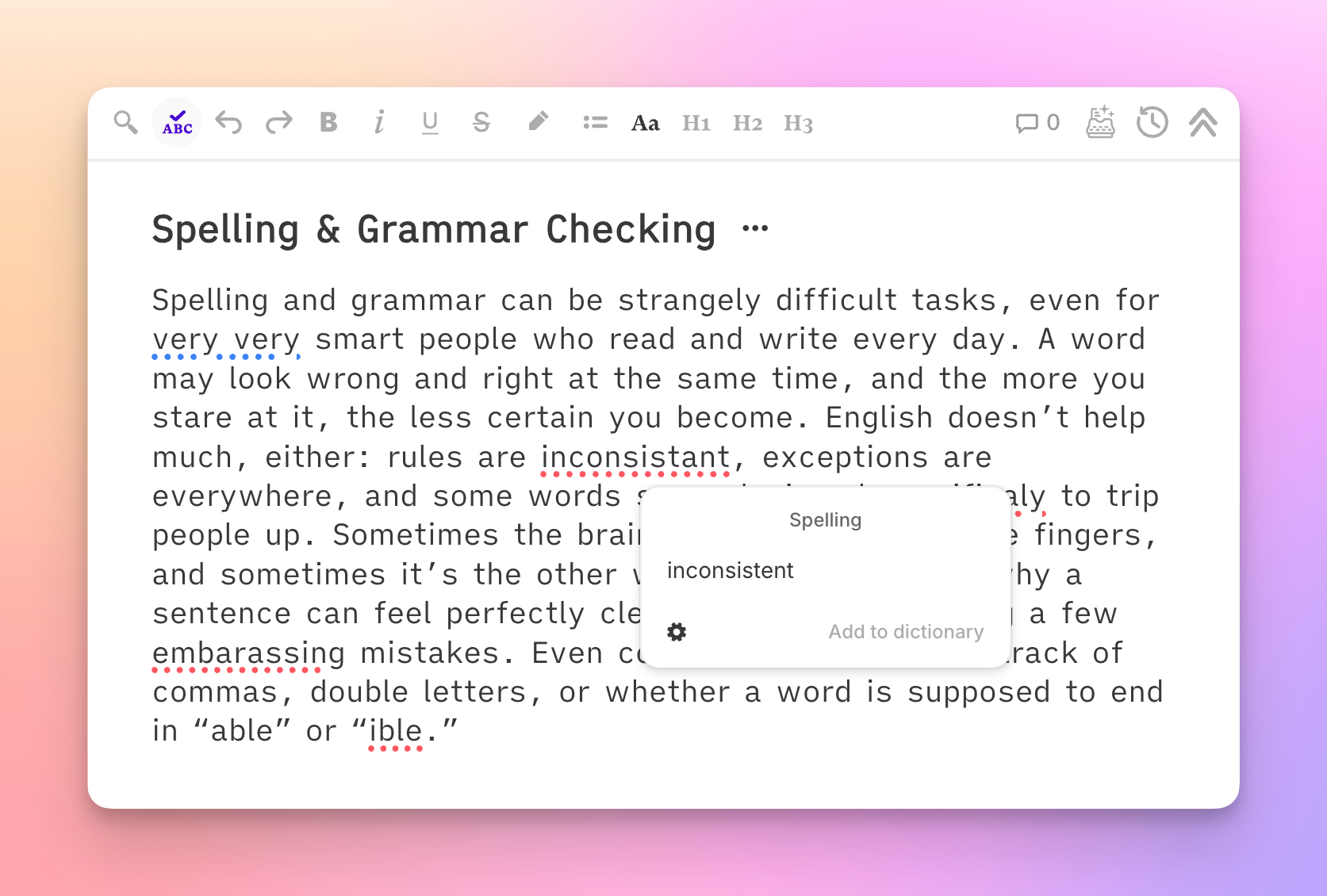
Good news for bad spellers (like me 😅). Sudowrite now includes built-in, Story Bible-aware spelling and grammar checking—on by default, right inside your editor, and totally free to use.
How it works
As you write, misspelled words are underlined in red, and grammar issues are underlined in blue inside your document. Click any underlined word or phrase to see a suggested correction, then approve it with one click or ignore it and move on.
If you believe that ignorance is bliss and you’d prefer to disable spelling and grammar checks, just toggle off the purple ABC icon at the very top of the editor.
Your dictionary, your rules
Writing fiction means using invented names, made-up places, and words that just don’t appear in a standard dictionary. That's why:
Character and Worldbuilding names from your Story Bible are automatically recognized—names, locations, and specific terminology you've already defined in Story Bible won't show up as spelling errors… assuming you spelled them correctly.
You can add other words to your dictionary with one click.
You can ignore grammar rules that go against your house style.
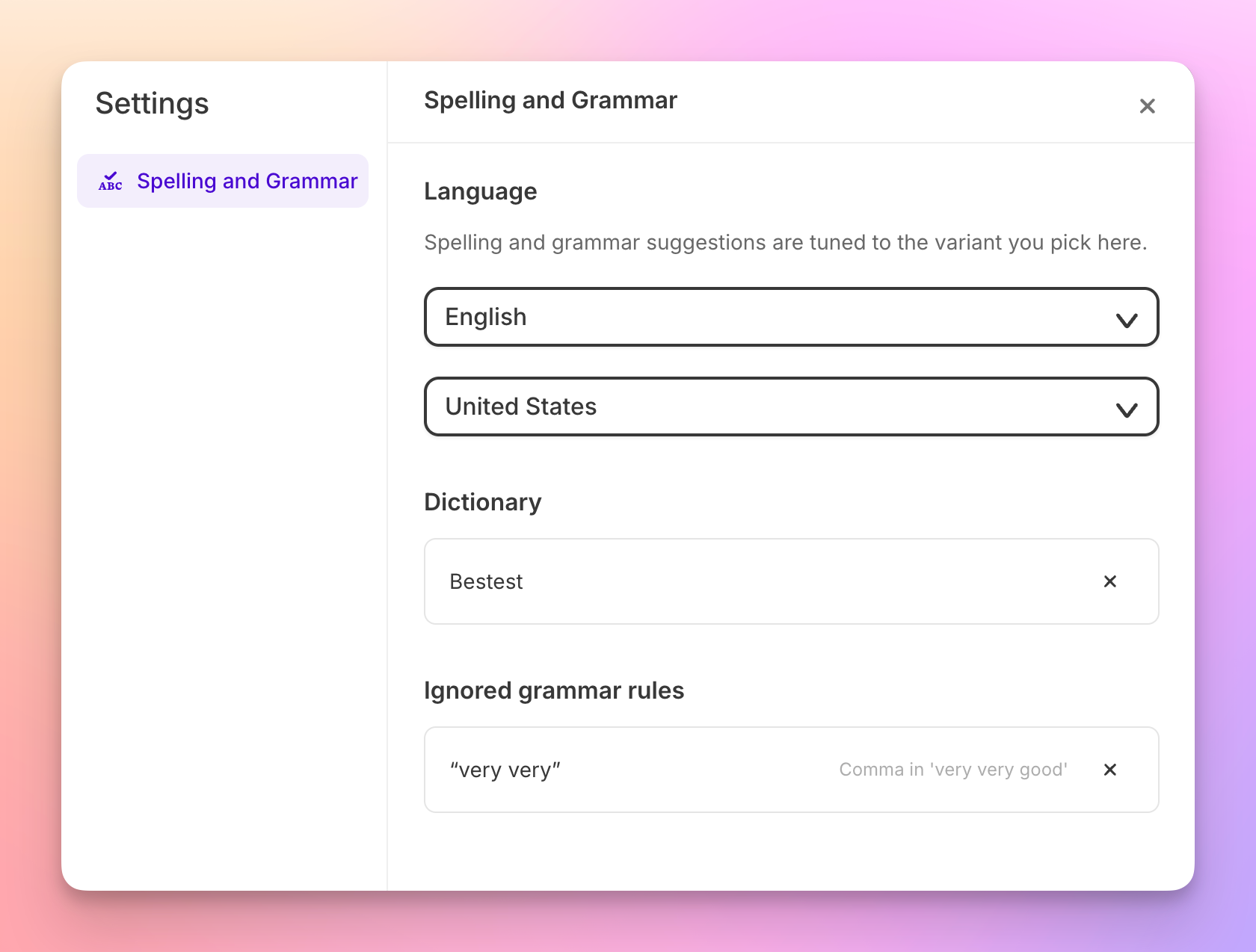
Spelling & Grammar Settings
Your custom dictionary and ignored grammar rules are saved in a new account-level Settings menu. This menu also allows you to select your Language and Region preferences—so that whether you live in the UK or the US, we can both believe we are spelling color correctly.
This menu will look slightly different from project-to-project, as it will also display the Character and Worldbuilding entries specific to the project you’re in. Dismiss dictionary entries or ignored grammar rules using the X beside them.
Find this new menu under More Settings via the Settings gear icon in the upper right.
Built for fiction writers
You’ve been asking for this for a long time, and it was really important to us to give you something smart and flexible that works great for fiction authors. We’re excited to make this available to everyone on every plan at no extra cost, and we’re looking forward to your feedback.